Set iPhone Screen Time Limits: App Limits, Downtime Tips
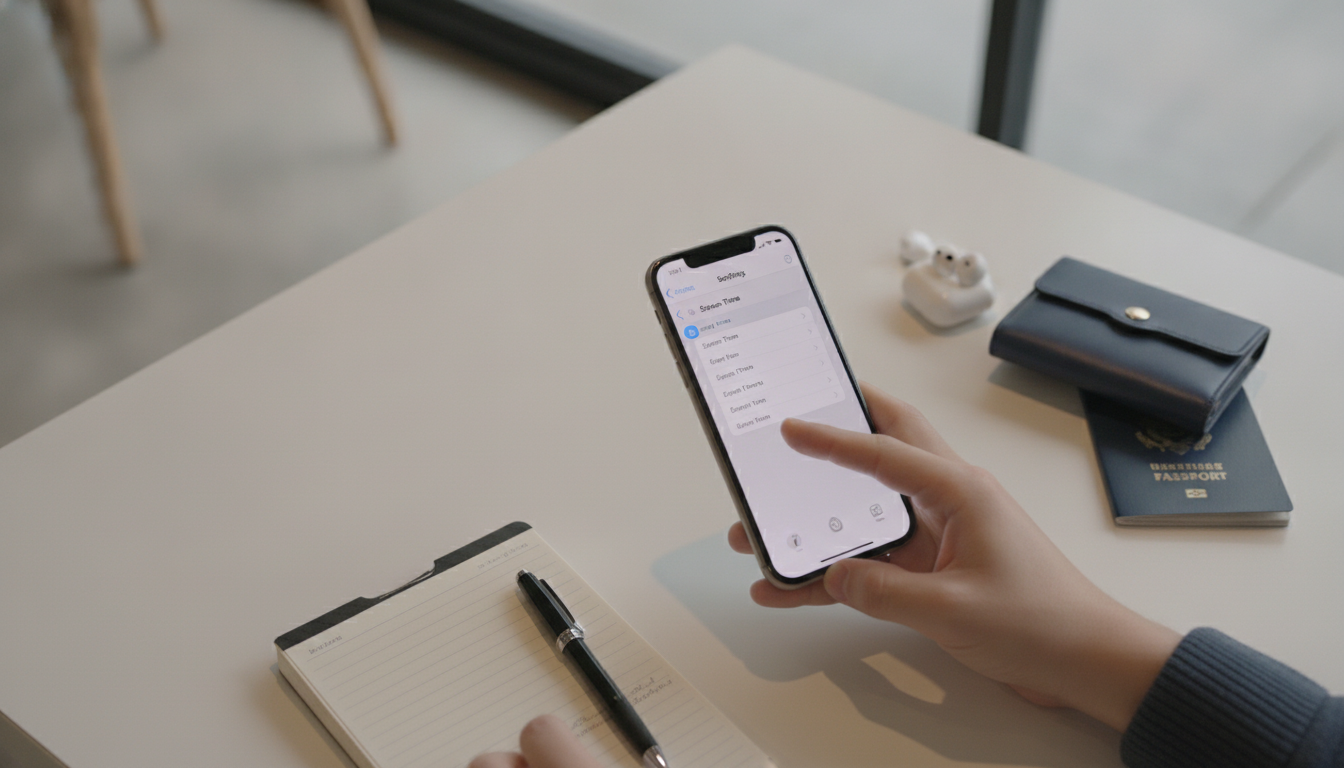
How do I set Screen Time limit on iPhone?
To set a Screen Time limit on an iPhone, you’ll use Apple’s built-in Screen Time controls to cap how long apps (or app categories) can be used each day. It takes a couple of minutes, and you can set different limits for different days.
Step-by-step: Set an app limit
- Open Settings > Screen Time.
- If Screen Time isn’t on yet, tap Turn On Screen Time, then follow the prompts.
- Tap App Limits > Add Limit.
- Select an app category (like Social, Games, Entertainment) or tap the arrow to pick specific apps.
- Tap Next, then set the time limit (hours/minutes).
- Choose whether to customize days (useful for weekends vs. school nights).
- Tap Add to save.
Make the limit harder to ignore
App limits can be bypassed if someone knows the device passcode. For a stronger setup, go to Settings > Screen Time and tap Use Screen Time Passcode. Set a passcode that’s different from the phone unlock code so changes require approval.
If you’re setting limits for a child’s iPhone
If your child is in your Family Sharing group, you can also manage limits from a parent device: go to Settings > Screen Time, select your child’s name, then set App Limits and a Screen Time Passcode. For a more complete routine (limits, downtime, and expectations), use this family-friendly guide and checklist: https://auristara.com/guide-family-screen-time-rules-kids-printable-checklist/.
Quick troubleshooting
- Limits not working? Make sure Block at End of Limit is enabled inside the limit settings.
- Wrong apps limited? Edit the limit in App Limits and confirm the selected apps/categories.
For Set iPhone Screen Time Limits: App Limits, Downtime Tips, the best answer depends on fit, material, care instructions, and how the product will be used day to day.
FAQ
How do I set Downtime on iPhone Screen Time?
Go to Settings > Screen Time > Downtime, turn it on, then choose the start and end times. During Downtime, only allowed apps and contacts will be available unless extra time is approved.
















Leave a comment